
In this post, I will show how to join a Windows 11 computer an Entra ID (Azure Active Directory) tenant.
Why Join to Entra ID?
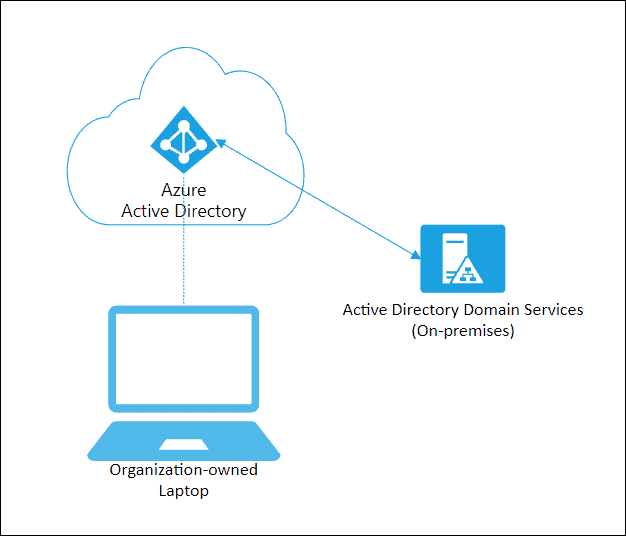
The reason I do this is I have desktops in branch offices where the users only need to use Office 365 and some other cloud applications. They do not need to be on the internal network or domain. But I do want the users to sign in to the computer using their Entra ID credentials with my conditional access rules, MFA, etc.
My setup is similar to this, but you don’t even need an on-premise domain these days;
To quote Microsoft;
While Entra ID join is primarily intended for organizations that do not have an on-premises Windows Server Active Directory infrastructure, you can certainly use it in scenarios where:
– You want to transition to cloud-based infrastructure using Entra ID and MDM like Intune.
– You can’t use an on-premises domain join, for example, if you need to get mobile devices such as tablets and phones under control.
– Your users primarily need to access Microsoft 365 or other SaaS apps integrated with Entra ID.
– You want to manage a group of users in Entra IDinstead of in Active Directory. This scenario can apply, for example, to seasonal workers, contractors, or students.
– You want to provide joining capabilities to workers in remote branch offices with limited on-premises infrastructure.
https://docs.microsoft.com/en-us/azure/active-directory/devices/concept-azure-ad-join
What is Required?
Entra ID Permissions
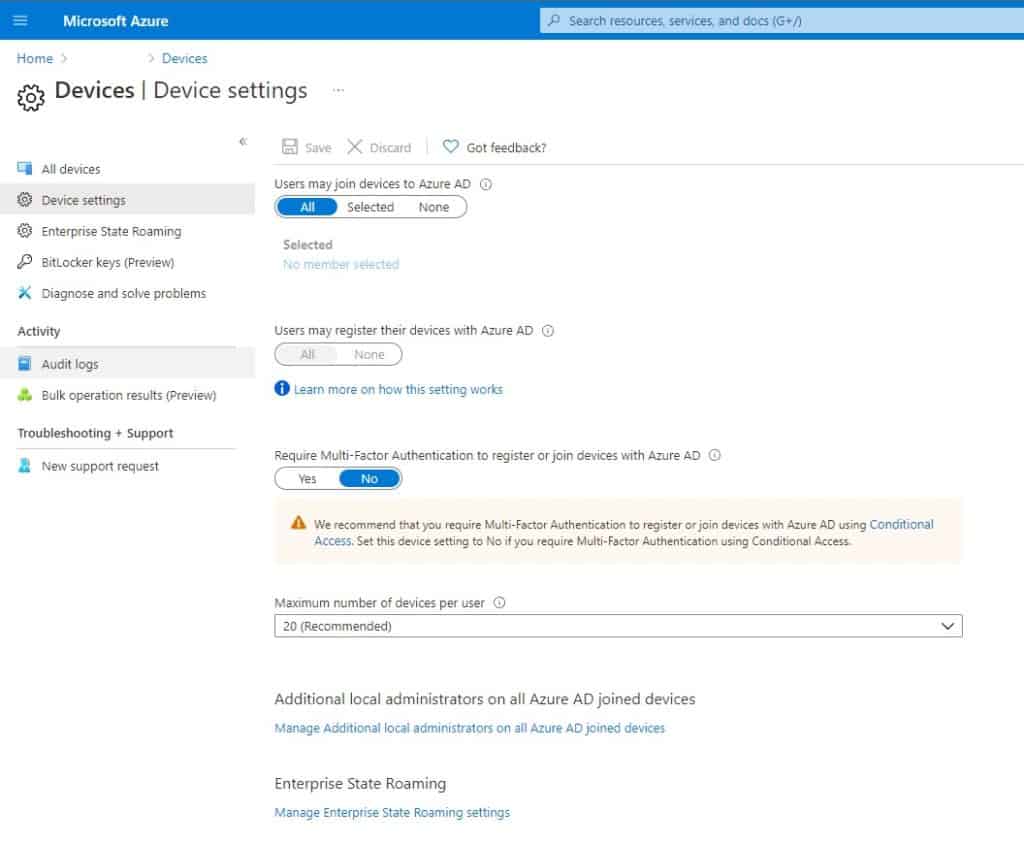
You will need an Entra ID account that has permission to join computers with your tenant. The Microsoft default is any active account can.
To check the settings for your tenant
- Open your Entra ID admin portal
- Select Manage => Devices
- Click Device Settings
Windows Edition
You will need a Pro of higher addition, you can’t join the Home edition
How to Join to Entra ID?
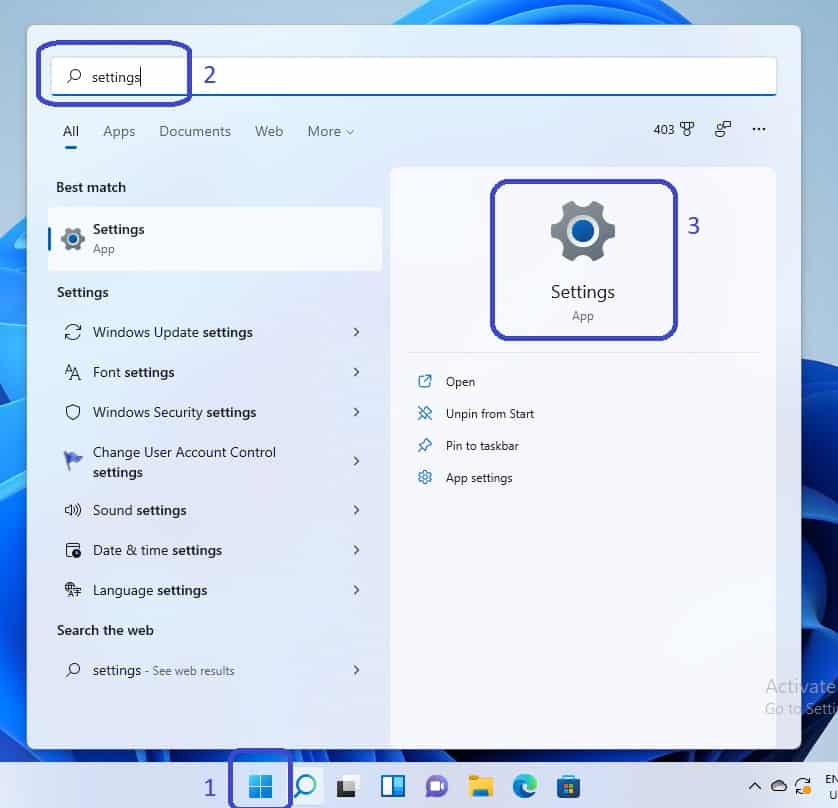
- Click Start and type and click Settings – If you don’t like the Start menu being in the center, check out this post Windows 11 Move the Start Menu
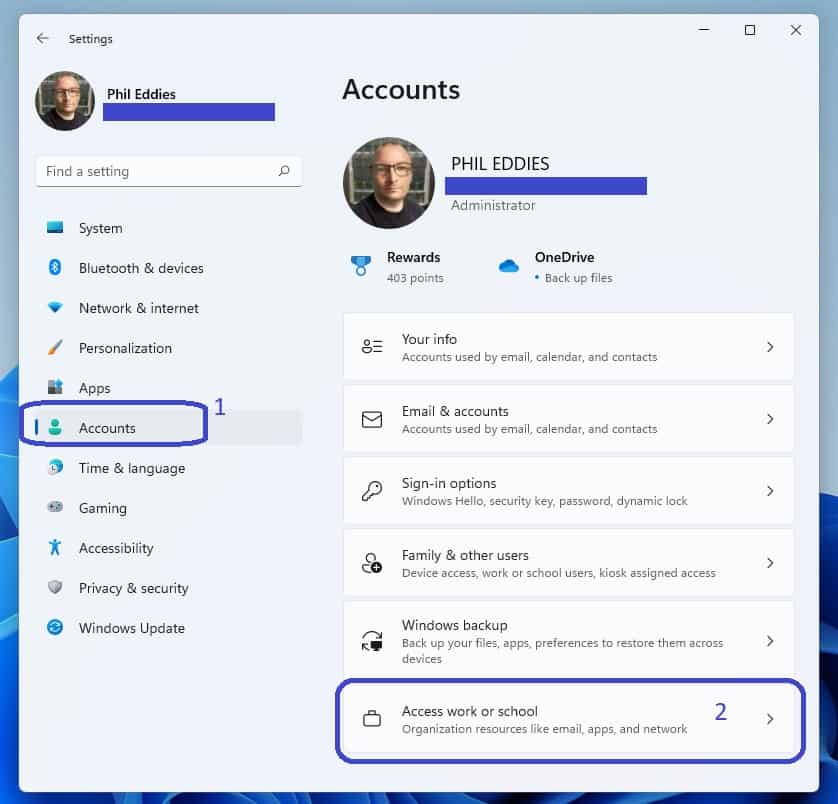
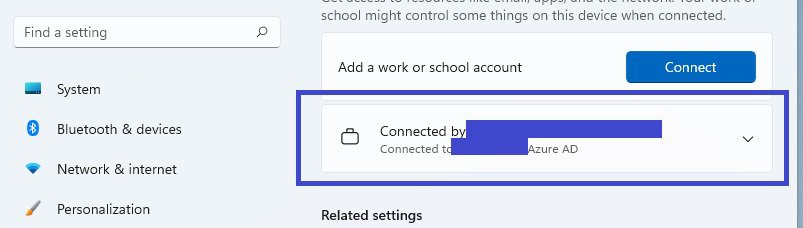
- Click Accounts and select Access work or school
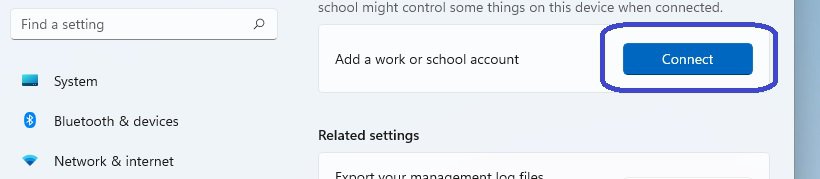
- Click Connect
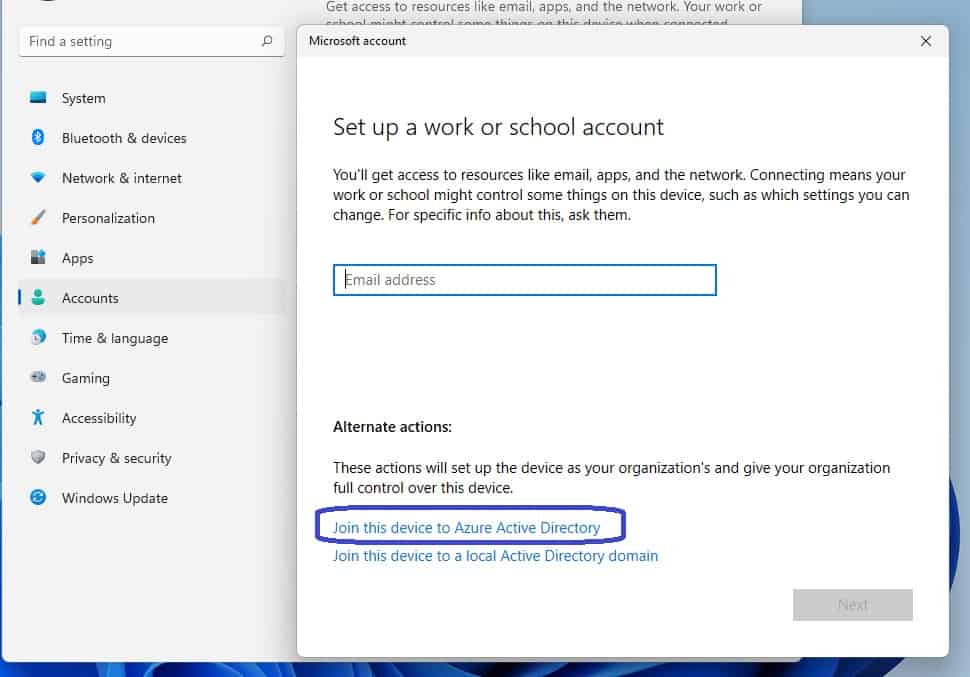
- Click Join this device to Azure Active Directory
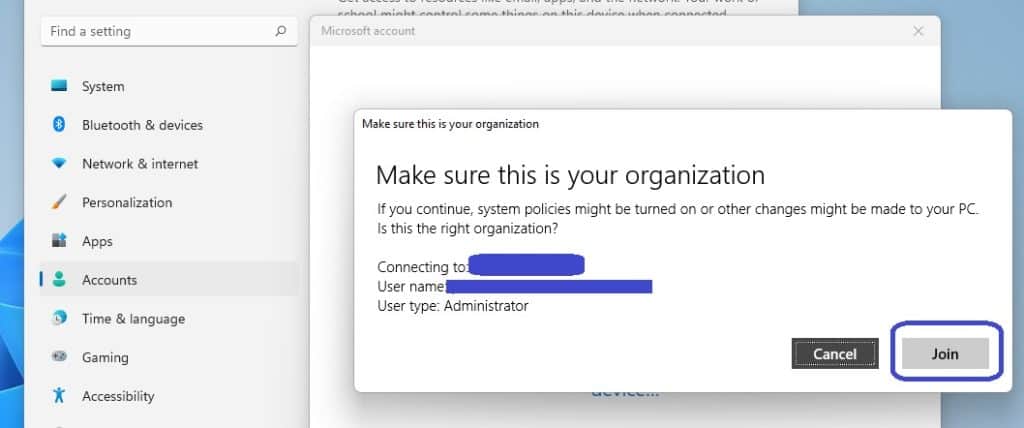
- Authenticate with an account that has permissions to join devices to the tenant (see above)
- Confirm the details and press Join
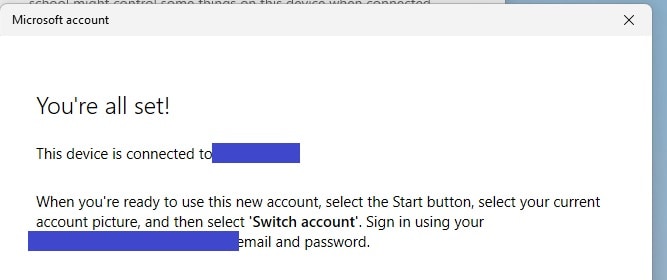
- You are all done

Nice article. Is there a way to do this from the PowerShell prompt?
So what happens if you want to close out a Azure AD account? Say a company uses AzureAD with Office 365 and decide to setup user laptops for login with those AzureAD accounts. If they migrate off Office 365 and stop using AzureAD, is access to their laptop with that account disabled? So you have to plan for that as part of the company 365 migration.